


Getting set up with the remote trade copier
Hover or tap a step to revolve it and see the matching screen from the manual.
- 01
Install MT4/5 Terminal onto a VPS
Download your brokers MT4/5 terminal executable and follow the steps to setup on your machine. After installation, open your terminal.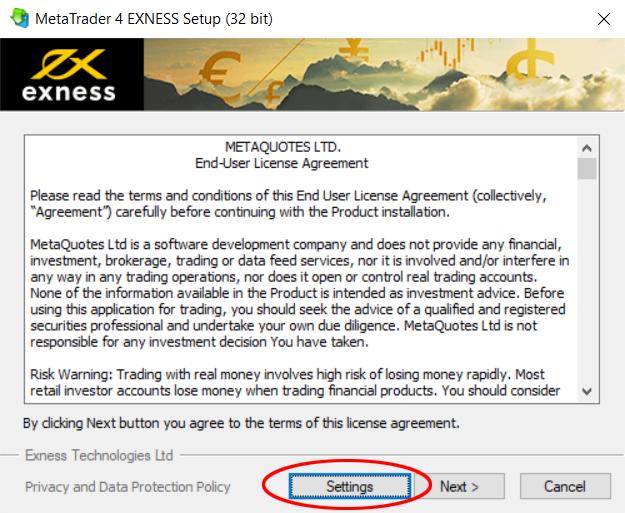
Installer — click Settings and number the install folder
- 02
Download Copier EA and Register
Get the Trade Receiver Free EA file for your terminal.
.ex4 is for MetaTrader 4 (MT4) and .ex5 is for MetaTrader 5 (MT5).
No broker details are required. Register your account below to enable access within the hour.
- 03
Allow trading and web access
In the receiver terminal go to Tools → Options → Expert Advisors and enable automated trading, DLL imports and WebRequest. Then add the two URLs below to the URL list:
http://register.autofxpro.comhttp://copy.autofxpro.com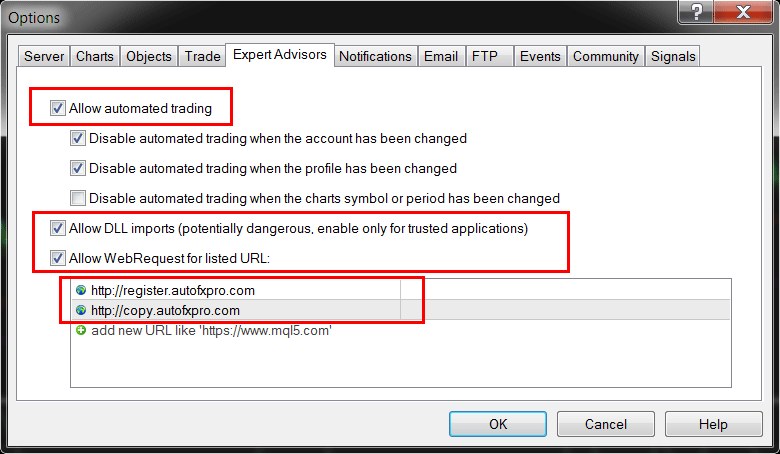
Options → Expert Advisors with both URLs added
- 04
Add the Expert Advisor
Open File → Open Data Folder and copy “AutoFxPro.com - Trade Receiver Free.ex4” (MT4) or “.ex5” (MT5) into MQL4(5)/Experts. Back in the terminal, right click Expert Advisors in the Navigator and choose Refresh, then drag Trade Receiver Free onto any chart. In the startup window's Common tab, tick “Allow DLL imports” and “Allow live trading”.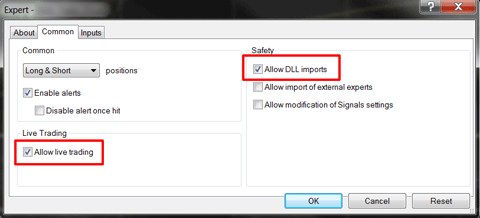
Common tab — allow DLL imports and live trading
- 05
Connect to a provider
To copy trades and signals from a provider, open the Provider List, enter the provider account number in the “Account number” field and its channel name in the “Channel name” field, then click the “ADD” button.
This information will be supplied to you when you register with your (anonymous) account number below.
Access will be enabled within the hour.
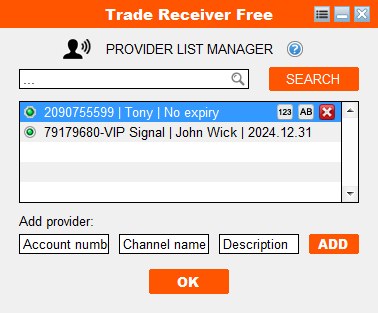
Provider List Manager
- 06
Configure risk settings
Open the Volume & Trade Options panel to configure your copied trade sizes.
Under "Copy Lots by" pick one of five modes. The recommended one is Provider risk scaling — it copies the provider's lot size while keeping risk in line with your account balance. You can toggle the Multiplier/Scale Factor to suit your risk appetite.
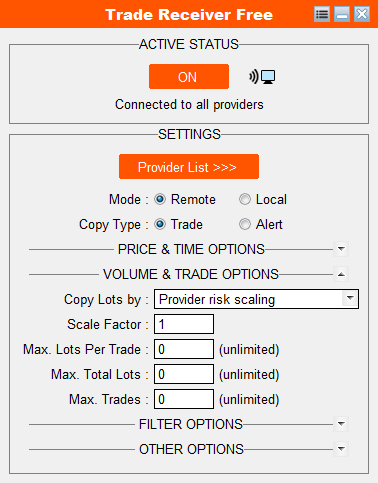
Volume & Trade Options — lot sizing and exposure caps
- 07
Switch it on
Click the status button at the top of the panel. When copying is live, the small screen icon in the header blinks.
Important: Check that Algo Trading is enabled on your MT4/5 terminal
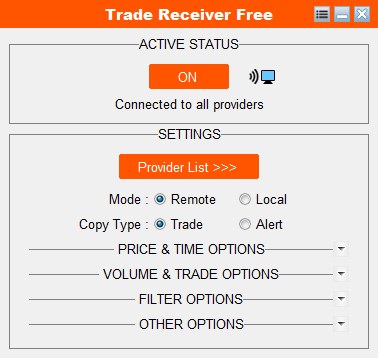
Panel running with an active provider
* It is recommended to test on a demo/paper account until you are familiar with the application.
What you can configure
Copy type
Trade opens real copied positions; Alert only sends signal notifications. The provider's choice wins — if they send alerts only, you cannot receive trades.
Price & time
Max slippage, max waiting time, entry delay and exit delay in seconds, plus a daily time filter that can include or exclude a window. Leave the window blank to always copy.
Volume & trades
Choose how lots are sized — provider risk scaling (recommended, matching growth and risk) or fixed alternatives — then cap max lots per trade, max total lots and max open trades.
Filters
Copy only buys, sells or pending orders; restrict to certain symbols (EURUSD; GBPUSD) or exclude them with an exclamation mark (!EURUSD).
Stop loss & take profit
Copy SL/TP at the same price or the same distance as the source trade, or override everything with your own custom SL & TP distance in points.
Comments & magic numbers
Copy the provider's comment or write your own, and tag copied trades by source ticket, source magic number, provider account number, or a fixed custom value.
Drawdown protection
Set a max equity drawdown percentage; when it is hit, the copier reacts automatically to protect the account.
Housekeeping
Re-copy trades you closed by hand while the source is still open, auto-update to new versions, turn on debug logging, match odd broker symbol names, or reset to defaults.
If something goes wrong
- No OK button when starting the EA
- Enable “Allow DLL imports”.
- Provider list is empty
- Open the provider list and add the provider's account number.
- Auto/Algo trading is disabled
- Enable the AutoTrading / Algo Trading button on the terminal toolbar.
- Live trading is disabled
- Experts list → Properties → Common → allow algo trading.
- Connection to broker is lost
- Check your internet, or wait for the broker's server to come back.
- Account disabled or removed by provider
- Ask the provider to add your receiver account to their receiver list and enable it.
Download the Expert Advisor Trade Copier
These are the ready-to-run Trade Receiver Free trade copier executables. Pick the file that matches your terminal — .ex4 for MetaTrader 4, .ex5 for MetaTrader 5. In your receiver terminal go to File → Open Data Folder, drop the file into MQL4 → Experts (or MQL5 → Experts), restart MetaTrader or refresh the Navigator, then drag Trade Receiver Free onto any chart with DLL imports and live trading enabled.
Enable your registration
Send your account number and email address (no broker details required) to enable registration with the signal publisher. Your account number is simply an identifier so the signal publisher knows who to send signals to — it is anonymous and contains no personally identifiable information. We will email you a confirmation link — click it to confirm your application, and your details are then passed to the signal publisher. Access will be enabled within an hour, and you will be notified by email when it is ready.